Manual
Complete guide to all features and roles.
Overview
What is PHOTARCH?
PHOTARCH is a photographic method and a curated database for archaeological artefacts. The method is a few principles that, followed, give uniform photographs that can be measured, again and again. Every object in the archive has been documented using the same controlled conditions — lighting, angle, background, colour reference, and physical scale — so that images are comparable across collections, institutions, and time. The result is a machine-readable visual dataset built for research, not a general-purpose photo gallery.
The platform has two sides: a publicly accessible archive that anyone can browse without an account, and a set of tools for researchers, institutions, and administrators who need deeper access or contribute to the archive.
Persistent identifiers (ARK, NAAN 73195) are assigned to every object, making citations stable across platform changes. All published objects are open access by default.
The PHOTARCH photographic method
Every object in the archive has been photographed under the same controlled conditions. This is not a stylistic choice — it is what makes the images useful for research. When lighting, angle, background, and colour reference are consistent across thousands of objects, you can compare them directly. A darkening of patina, a difference in surface texture, a similarity in form — these things become visible only when the images are made the same way.
The method asks for a pure white ground that keeps the object’s shadow, one key light at half past ten and 45° above, the object lying on the PHOTARCH board, and the plumb view straight down — Front — as the main picture, followed by any other sides that are documented: Back, Top, Down, Left, Right and the four angles at the corners. See Principles and setup for the reasons.
The colour target — a ColorChecker — is read at capture, and its result lives in the file’s colour profile. The object’s dominant colours are read from the object itself, the pixels inside its outline, and stored as data, not just as a visual — it makes it possible to search the archive by colour and to compare palettes across objects computationally.
The scale comes from the picture itself. The application finds the board, reads the markers in its corners and derives how many millimetres one pixel covers, correcting the perspective in the same operation. Where no board is used, the scale is set from the object’s longest side measured with a digital caliper — or, only as a fallback, from a ruler in the frame — and the file records which of the three it was. The number is written into the file as Image Scale Metadata — an open format developed for it, described below — and the comparison tool uses it to show objects at their true relative sizes.
The apps and the archive
PHOTARCH is two things that work apart. The apps — the PHOTARCH app and PHOTARCH for iPhone — are where a collection is photographed, measured, described and packaged. The photographs and records stay on the organisation’s own computers. The archive on the web is a public archive, made for access: a visually driven database where anyone can browse, compare and cite what organisations have chosen to publish.
Taking part is optional — Nothing done in the apps is uploaded to the archive on its own. An object reaches the archive only when someone in the organisation sends it — from Export › PHOTARCH archive, and later with Sync — and only then. The apps work fully without the archive, and the archive works without the apps.
An add-on for organisations — Publishing is an option for an organisation that wants to make its collections accessible. The organisation decides what goes up, and what stays internal: shelf, location, accession number and notes are never shown publicly. What is published to the archive is open access.
How an object is sent, and kept in step afterwards, is described under Keeping the archive in step.
Membership, licence and subscription
The archive is an open commons. Browsing needs no account. Membership is free, and a member’s account unlocks everything a reader can do with a record.
The PHOTARCH app is free, with limits. The Private licence, bought once, unlocks all of it; the Organisation subscription is for organisations, and connects the app to the tools they already work with.
Every member has a badge beside their name, on their own pages and where others see them: grey for a member, green with a Private licence, blue for a member of an organisation with the Organisation subscription.
Archive access
Public — not signed in
Free, no account required
- —Browse and search the entire published archive
- —View all object metadata, colour palettes, and multi-angle images
- —Use filters: period, material, object type, find site, colour
- —View the Map and Timeline
- —Read citations and ARK identifiers
Member
Free, no card
- —Everything above
- —The PHOTARCH guidebook, when it is out
- —Download JPEG images with embedded XMP metadata and scale bar
- —Download TIFF masters (where available)
- —Save objects to Favourites
- —Create custom collections
- —Create Canvases for annotation and notes
- —Share collections and canvases via private link
- —Compare up to 24 objects side by side with scale alignment
- —Download ICC colour profiles
- —Bulk CSV export of archive metadata
Archive
Browsing the archive
The archive is accessible at archive.photarch.com without an account. All published objects are listed in a grid ordered by entry date, newest first. Each cell shows the hero image, inventory number, title, and the object's dominant colour palette as a horizontal bar.
Text search — The search field matches across title, inventory number, find site, and institution name. Partial matches are supported.
Filters — The filter panel lets you narrow by period (controlled vocabulary), material (controlled vocabulary), object type, find site (substring match), and dominant colour. Multiple filters stack: all must match simultaneously.
Collections — A collections dropdown filters the archive to a specific named collection (e.g., a museum's catalogue subset). Collections can have hero images and descriptions set by administrators.
Result counts — The interface displays both the total number of published objects and the count matching the active filter. Clearing all filters restores the full set.
Object pages — what you see
Each object has a dedicated page reachable by clicking any result in the archive grid, or directly via its ARK identifier or PHOTARCH ID.
Image gallery — The main picture (the plumb view, Front) is shown first, followed by any other documented sides: Back, Top, Down, Left, Right, the four angles at the corners, detail and other. Click any thumbnail to make it the primary view.
Fragments and related objects — If the object belongs to a fragment group (e.g., sherds from the same vessel), the group members appear as a row of thumbnails below the gallery. A "Compare group" link opens all members side by side in the comparison tool.
Zoom and full size — Use the slider, the − and + buttons, the scroll wheel or a pinch to zoom. "Full size" jumps straight to 100 %, where one pixel of the master image fills one pixel of your screen — the sharpest the photograph can show. You can zoom past 100 % to 1 600 %, where the pixels are shown as pixels rather than smoothed. The scale bar follows the zoom. See IIIF for how this works.
Embargo — An object under embargo is not in the public archive at all: it behaves as a draft until midnight after its embargo date, in the embargo’s own time zone, and then appears by itself. Members of the organisation that owns it can still open it, and see a notice in place of the images.
Metadata — The right column presents the object record in structured sections:
- —Classification: period (with date range if available), material, technique, object type, condition, fragment status
- —Provenance: find site, find ID, acquisition method, survey report link, GPS coordinates (links to OpenStreetMap)
- —Institution: museum name, collection name, logo, links
- —Dimensions: length × breadth of the object itself, thickness, weight — displayed in your chosen unit system (Metric: mm/g, Imperial: in/oz). Set in Account settings.
- —Documentation: photographer, capture date, camera, lens, light source, modifier, lighting angle, background, licence
- —Downloads: high-res JPEG with embedded scale bar and XMP metadata, TIFF master and ICC colour profile — all free with an account
- —Citation: auto-generated in APA, Chicago, Harvard, and MLA formats
- —Colour palette: extracted dominant colours as hex swatches
Similar objects — Below the metadata, up to six objects with similar colours are suggested.
Navigation — Use the left and right arrow keys to move to adjacent objects in the current filtered set without returning to the archive.
ARK identifier — Every object carries a persistent ARK identifier (NAAN 73195) suitable for stable citation in publications and databases.
Embedding objects and collections
A published object can be shown on another site — a museum’s own pages, a blog, a course — in the archive’s own viewer, with its zoom and its scale bar. An embed only ever shows what the public may see: an object under embargo, or not yet published, does not appear.
One object — On the object page, click Embed beside Share. Tick whether the scale bar and the metadata panel are shown, and choose a width: Small, Medium or Large. The height follows from the width, so the scale bar is never cut off. Preview shows the viewer as it will look; Copy embed code copies the code to paste into your page. The code is for members: signed out, Embed asks you to sign in, and membership is free.
Or paste the link — WordPress, Notion, Confluence and other sites that read oEmbed need no code: paste the object’s address on a line of its own, and the viewer is put in by itself.
A collection or a canvas — An organisation can embed a whole collection or canvas. Embed beside it opens a window with layout suggestions — Gallery, True scale, Catalogue, Strip and Dark showcase for a collection; As arranged, On stone and Dark for a canvas — and settings for the columns and rows, the size of the objects, the scale, what is written under each object and the background. The preview beside the settings changes as you do. Create the embed gives the code and a link. With Fits the content the frame grows and shrinks with what it shows, by a small script in the code; if your site removes scripts, choose Fixed and set a height. An embed holds up to 120 objects.
Afterwards — Changes saved in the window show at once wherever the code is pasted, and Withdraw takes the embed down.
Map
The Map view (accessible from the main navigation) displays all objects that have GPS coordinates recorded. Each marker shows the inventory number, title, period, material, and find site. Clicking a marker opens a preview with the hero image and a link to the full object page.
Coordinates are recorded at ingest and are stored per object as decimal latitude and longitude. They represent the find location, not the current museum location.
Timeline
The Timeline view shows the chronological distribution of objects in the archive, grouped by period. Period labels are resolved from the controlled vocabulary. Each group shows the object count and links to a filtered archive view for that period.
Objects are placed on the timeline using their period vocabulary code. If specific date range years (start/end year) are recorded for a period, those are used for fine-grained placement.
Fragments and angles
Fragments
An object that is broken can be handled two ways, and PHOTARCH supports both. Each piece can be an object in its own right, marked as a fragment. Several fragments can also be treated as one object — kept together, and shown together as one.
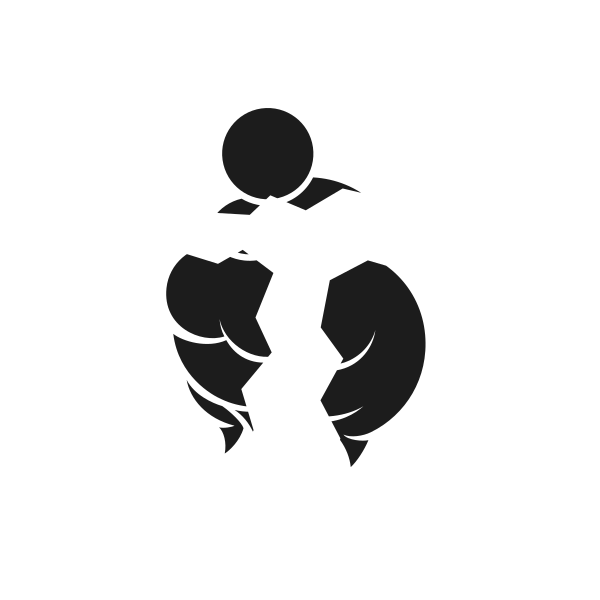
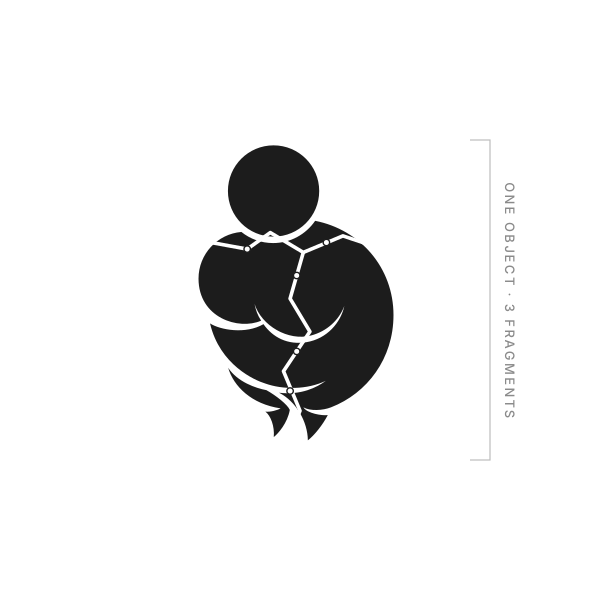
An object as a fragment — Every object records whether it is complete, a fragment, a reconstruction, or unknown. A piece photographed on its own is a full object: measured, described and published like any other, and marked as a fragment.
Several fragments as one object — In the PHOTARCH app, select the pieces in Sort and choose Link as Fragments. They become one group, which can be shown as one card: the first piece leads, and the group’s box lists every piece, where one can be taken out again. Pieces linked on different days still meet in the same group.
Place on canvas to arrange — Put the pieces on a canvas and move them until they fit. Try it here: drag the three pieces together.
In the archive — On the object page of any piece, the other members of its group appear as a row of thumbnails below the pictures, and Compare group opens them side by side in the comparison tool.
Angles
Every object has one main picture: the plumb view, taken straight down onto the object as it lies on the board. That is the picture the archive shows first and measures from. An object can also have other angles — its sides, its underside, a view from above at an angle — and they stay pictures of the same object, not objects of their own.
Front — the upper face as it lies, from above: the main picture
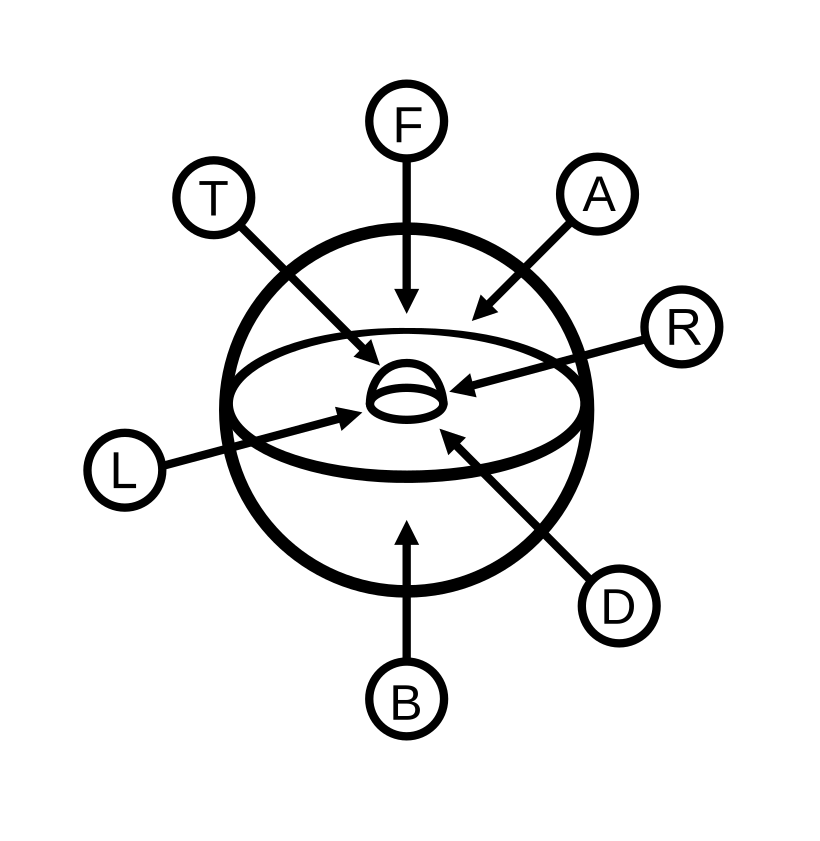
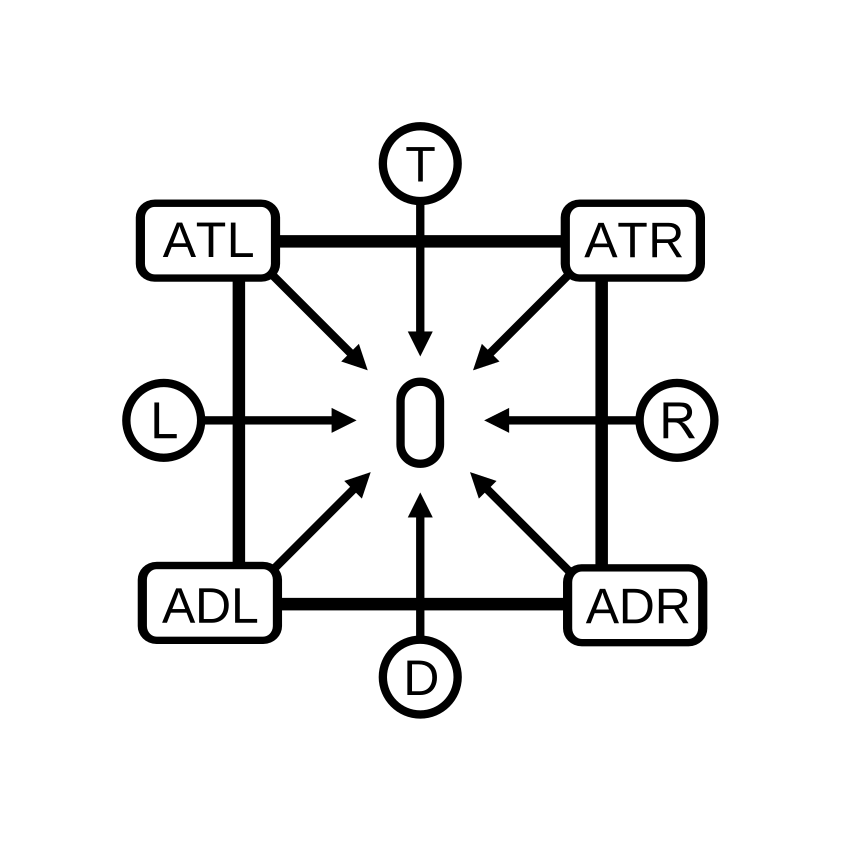
Choosing the side — In the app each angle is named on a drawing rather than picked from a list. Sides shows the object inside a sphere: an object lying on the board has two faces, like a coin, two ends and two sides. F is Front, the upper face as it lies, which is the plumb view; B is Back, the underside it rests on; T is Top, the end at the top of the plumb view; D is Down, the end at its bottom; and L and R are the sides at the left and the right of the plumb view. Diagonals shows the object from above with the four positions at its corners — ATL, ATR, ADL and ADR, A as in angle: angle top left, where the top end meets the left side, and so on — for a view down onto the object at 45°. The A on the sphere stands for all four. C is Close-up: a part of the object seen near — a stamp, a break, a detail. It is not a side, so it is not on the drawings but beside them, and an object may have several.
How the pictures correspond — Click a letter on the sphere or the plan, and its picture is marked; click a picture, and its letter is. The object always lies on the board, and the lamp stays where it is — at the upper left of the plumb view, 45° up — so each picture shows the light and shadow its camera position gives. First, from straight above: F with the object as it lies, the main picture, and B with it turned over along its length. Then the camera goes down to eye level and the object is turned on the board: D, the down end towards the camera; turned 180°, T, the top end; turned 90°, L, the side at the left of the plumb view; turned 180°, R, the side at its right. Last, the angles at the corners: the object is turned so a corner points at the camera, which looks down at 45°. Top and down are read off the plumb view: the top is the end at the top of the main picture.
Grouping the angles — Select the pictures of one object in Sort and choose Treat as Angles. They become one object; a globe on its card says it has more than one picture, and clicking it opens every view. Which Picture Stands for It sets the main picture. After an import, pictures that look like one object photographed in a series are suggested as angles, ringed on their cards.
In the archive — The main picture comes first on the object page, followed by the other documented views, each named by its side. All of them are shown as square thumbnails; click one to make it the large view.
Researcher tools
Favourites
Any signed-in account can save objects by clicking the heart icon on any object page or archive grid cell. Saved objects appear in Favourites under My Collections.
Favourites are personal and not shared unless you add them to a custom collection and share that collection.
Custom collections
A custom collection is a named list of objects you curate yourself. Any signed-in account can create any number of collections from the My Collections page or from any object page via the "+ Collection" button in the actions bar.
Creating a collection — Click "New collection" on My Collections, give it a name, and start adding objects.
Adding objects — On any object page, click the "+ Collection" button and select or create the destination collection.
Sharing — Each collection has a unique share token. Click "Share" (or the ··· menu on mobile) to copy a URL you can send to a colleague. The recipient pastes the link into the "Import a collection" field on their My Collections page.
Importing a shared collection — Paste a share link or token into the "Import a collection" field on My Collections. After import the collection appears in a "Shared with me" section that persists across sessions, so it is always accessible from My Collections.
Collection notes — Click "Notes" to open the notes panel for a collection. You can add any number of notes. Each note has a Public / Private toggle: private notes are visible only to you; public notes are included whenever the collection is shared via link, appearing as annotations on the shared collection view. Notes can be edited or deleted at any time.
Open as canvas — Click "Open as canvas" to create a new canvas containing all objects in the collection, arranged in a grid layout. The canvas opens in the Canvases view where you can reposition objects, add annotations, and share it independently.
Add to canvas — Click "Add to canvas" to select an existing canvas and append all collection objects to it. Useful for combining material from multiple collections into one research workspace.
CSV export — Click "CSV" to download all object metadata as a comma-separated file, ready for use in spreadsheet software or reference managers.
Collection report — Click "Report" to open a printable page showing each artefact with a thumbnail, and metadata summary. Use the browser's Print function (Cmd+P / Ctrl+P) to save as PDF.
Private notes
Each object page has a private notes field for logged-in users. Notes are tied to your account and the specific object — they are not visible to anyone else, including organisation administrators.
Writing a note — On any object page, click "↓ Private note" below the actions bar. A text area opens. Notes save automatically as you type (approximately one second after you stop).
Notes are a good place to record interpretations, cross-references, field observations, or anything else you want to retain without it affecting the public object record.
Canvases and annotation
Canvases are personal research workspaces where you arrange objects spatially and attach notes to them. Anyone can open an object on a canvas — click "+ Canvas" on the object page — and arrange it there without an account. Saving a canvas requires an account, which is free.
Creating a canvas — Go to My Pages (Mina sidor) and create a new canvas under Groups. Give it a name.
Adding notes — From any object page, add the object to a canvas and write a note. Notes are private to your account by default.
Sharing — Canvases can be shared via a private link, similar to custom collections. Recipients sign in to view the canvas and its notes; membership is free.
Organisation visibility — If you are part of an organisation, your canvas count and annotation count are visible to the organisation’s administrator on their dashboard (but not the note content itself).
PDF export
Object records and canvases can be exported as PDF documents. A PDF export produces a formatted document that contains the object's images, metadata, and citation — suitable for sharing with colleagues, including in reports, or archiving offline.
Exporting an object record — On any object page, the export button is in the actions bar at the top of the metadata column. The resulting PDF includes the hero image and all documented views, the full metadata record, and the auto-generated citation.
Exporting a canvas — From your canvas view, use the export option to generate a PDF containing all objects on the canvas together with any notes you have attached to each object. Notes marked as private are included since the export is generated by your own account.
PDF export is available to any signed-in account.
Compare tool
The Compare tool places up to 24 objects side by side in a synchronised viewer. All images scroll and zoom together, and if an object has been measured, a visual scale reference is overlaid to keep objects in true relative proportion.
Opening a comparison — From a fragment group on any object page, click "Compare group". Alternatively, build a custom comparison by appending ?ids=id1,id2,id3 to the /compare URL.
Bounding box overlay — Where a bounding box has been drawn (see Measurement), the object outline is overlaid on the comparison image, scaled correctly relative to the other objects.
Dimension display — Object dimensions shown in the sidebar list respect your unit preference (Metric/Imperial), set under Account settings.
Downloads — Signed-in accounts can download two formats from the comparison view: a contact sheet (all objects arranged in a single image) and a canvas export (the full layout including any pins and annotations).
Minimum 2 objects are required. Objects without hero images are shown as placeholders.
Organisation
Organisation dashboard
Organisation accounts have access to a dedicated dashboard at /institution (also linked as "Dashboard" in the navigation).
Members — The dashboard lists the organisation’s researchers and the invitations still pending. There is no cap: an organisation invites as many researchers as it has.
Researcher activity — For each researcher in the organisation, the dashboard shows: canvases created, annotations written, collections maintained, and objects saved to favourites. This gives a quick overview of research activity without exposing the content of notes or collections.
Managing your team
Organisation accounts manage their team from the Team page (/team).
Inviting a researcher — Enter the researcher's email address and click Invite. If they already have a PHOTARCH account, they are added immediately. If not, an invitation email is sent. The invite appears in the Pending list until accepted.
Removing a member — Each member row has a Remove button. A confirmation dialog appears before removal. Removed researchers lose organisation-level access but retain their personal account and data.
Loan status
Administrator accounts can record the current physical location status of any object using the Loan status field in the Edit artefact panel.
Three statuses are available: In storage (default), On loan, and On display. Selecting "On loan" reveals fields for the receiving institution or contact, and loan start and end dates. Selecting "On display" shows a location field for the exhibition or gallery name.
Loan status is only visible to administrator accounts — it does not appear on the public object page. It is a quick reference on the web; the full history of an object’s loans and moves is kept in the app’s collection management (see Collection management and the organisation’s rules).
Collection report — The printable collection report (accessible via "Report" on My Collections) includes the loan status of each object, making it easy to generate a document for loan submissions or internal review.
Activity log
Every metadata update to an object is recorded in an activity log. The log captures which fields were changed, the new values, and which user account made the change.
Accessing the log — On any object page (admin accounts only), click "↓ Activity log" at the bottom of the right column. The log loads on demand and shows the 50 most recent entries, newest first.
The activity log is an internal audit trail and is not visible to public users, researchers, or organisation members. It is intended for provenance transparency and internal revision purposes.
Vocabulary aliases
Each institution may use its own internal terminology for the same concepts that PHOTARCH uses controlled vocabulary for. Vocabulary aliases let you map your internal terms to the terms of PHOTARCH’s controlled vocabulary, so your team can work in familiar language while the underlying data stays consistent across the archive.
Accessing vocabulary aliases — Go to Vocabulary in the organisation navigation. The Vocabulary Aliases section is at the bottom of the page.
Adding an alias — Select the vocabulary field you are mapping (Period, Material, Object type, Object subtype, Technique, Condition, or Acquisition method). Then choose the PHOTARCH term from the dropdown — the dropdown is populated with all active terms for that vocabulary. Finally, enter your organisation's internal term for it and click Add. The alias is saved immediately.
Removing an alias — Click the × button on any existing alias row to remove it.
Aliases do not change the stored value in the database. They are a display and entry aid for your team.
The PHOTARCH app
What the PHOTARCH app is
The PHOTARCH app is the app the photographs pass through: a library on your own Mac, where objects are photographed, measured, described and exported.
The five steps — The header carries them in the order the work runs: Sort, the grid of everything in the library; Canvas, objects laid out beside each other at true scale; Capture, photographing with the iPhone as the camera; Edit, one object at a time — its scale, its exposure, its record; and Export, what leaves the app. Edit stays grey until an object is open.
The diagram below follows a file rather than the header: it comes in by import or capture, and each stage adds something to it.
01
Import
The file, as it is
02
Capture
The photograph, with the board in frame
03
Sort
Rating, flag, colour, collection
04
Edit
Scale, exposure, the record
05
Canvas
The object beside others, at true scale
06
Export
A file that carries it all
Your work is on your computer — The library, the original files and the catalogue live in a folder you choose. The app works with no connection at all. Your photographs and records stay on your own computer, and none of them reaches this site until you export, or, for an organisation, publish. An organisation can choose to share its store map — the places and what stands where — so every computer sees the same one; never the pictures, the records or a find spot. When you export with a connection under a paid licence, a fingerprint of each file’s record — never the picture — is sent to be signed and timestamped, and the seal is written into the file. Without a connection the export still goes out, unsealed, and its report says which files are.
Three levels — Free, Private and Organisation. Every level carries the whole method: the same grading against the standards, the same measurement in millimetres, the same record written into the file. What the levels differ in is how much you may keep, and what you may export; each section below says so where it matters.
Signing in, and the licence
Signing in — The app signs in to the account you have on this site, from Export › PHOTARCH archive › Sign in to PHOTARCH…. The browser opens, you sign in as usual and allow the connection, and the app gets a key of its own. It is listed under Connected devices on your account page, where it can be disconnected again; a connection unused for 180 days ends by itself.
What signing in is for — A signed-in app knows who you are and can read your organisation’s rules and vocabulary. Pushing into the archive needs an organisation account; a private account can sign in but not push, and the app says so.
The licence — Settings › Licence shows This computer, with Activate This Computer — or Sign In to Activate…, when you are not signed in yet — and Deactivate This Computer. Deactivating frees the licence so that it can be activated on another computer.
How many computers — The app knows only this computer, activated or deactivated. How many computers your licence covers at once belongs to the account, so it is shown here on the web, not in the app.
The library on your computer
What the library is — One folder. In it are your original files, exactly as they came from the camera; the derivatives the app makes for viewing; and the catalogue, which holds everything the app knows about each object.
The originals are never rewritten — The app writes its work into the catalogue, not into your files. What you measure, adjust or describe is kept beside the original, and the original stays byte for byte as it arrived. An export makes a new file.
The library folder, on your computer
The originals
The files as they arrived — RAW, TIFF, JPEG. Never rewritten.
Derivatives
The previews the app makes for looking and for the grid.
The catalogue
Everything the app knows: the scale, the record, collections, canvases, places.
Attachments
Scans, drawings, reports and models kept beside the photographs.
What leaves it, and only when you say so
An export
A new file, with the record, the rights and the scale written into it.
A push to the archive
Only for an organisation, only when it chooses, and only what changed.
The app works with no connection at all. Nothing reaches photarch.com by itself, and the app keeps no backup of its own — the library folder belongs in the computer’s own backup.
Where it is — Settings › Library shows the folder in Finder, or moves the library to another folder with Choose folder…. An external disk is fine, as long as it is connected when the app opens.
Backup — The app has no backup of its own. Include the library folder in the computer’s own backup — Time Machine or whatever you use — and both the originals and the catalogue are covered. An organisation that publishes also has the archive as a second copy of what has been pushed, but the archive is not a backup of the library.
Bringing photographs in
Files and folders — Import brings in what you already have: RAW files, TIFF, JPEG and PSD. Each becomes an object in the library, with the file kept as it is.
A watched folder — Watch a folder takes everything that appears in a folder you name, so a camera or a scanner that writes there fills the library by itself.
Where the photographs land — When the app needs to know where new photographs belong, it asks: Where should the photos land? — the library as a whole, or a collection you choose.
Records you already have — File › Import Metadata… reads records from CSV, JSON-LD and Dublin Core XML and matches them to objects already in the library. It is a File menu item, not part of an object’s record: it fills many objects at once.
Sort — the grid
The grid — Sort shows what the library holds: the whole library, a collection, or a place in the physical archive. The toolbar names what you are looking at and how much of it is selected — N objects · N selected.
Seeing more or less — Cards or a list, switched with L (the key can be changed in Settings › Shortcuts); a slider for card size; another for the air between the cards; and a clean view that shows the pictures alone, without names or marks. at real size relative to each other lays the cards out in proportion to the objects themselves, so a brooch beside a bead is as different on screen as in the drawer. Reset view puts the toolbar back as it was.
Marking as you go — Each object takes a rating of one to five stars, a flag — Select or Reject — and a colour label. They are yours: nothing here is published.
Finding again — Filter by stars, flag, colour label or the object’s own colours, and order by Newest, Rating, Width, Height or Name, forwards or backwards. Width and Height are the objects’ real measurements, so the grid can be read as a size order.
The object’s own menu — Right-click a card for the rest: open it in a particular face of Edit, export it, write a note, rename it, add it to a collection or a canvas, mark it as a reference card, apply a template, duplicate it, regenerate its preview, show the file in Finder, find a file that has moved, or move it to the trash. Organisations also print its label here. Fragments and angles have their own submenus, described in their own sections.
The trash — Moving an object to the trash asks what should happen to the file on disk: Move to Trash takes the file with it, Keep the files removes only the object from the library.
Collections in the app
What a collection is — A named set of objects in the library: a sitting, an excavation, a drawer, a loan. An object can be in several collections at once, and a collection can hold sub-collections.
Making and filling them — + beside COLLECTIONS makes one; New Sub-collection… makes one inside another. Drag objects onto a collection, or use Add to Collection in an object’s menu. Import into “…”… imports straight into a collection.
What a collection knows about itself — Edit Metadata… opens the collection’s own record: what the collection is — its title, who holds it, the place, the period, the rights — not a copy of what its objects say.
On disk — Organize on Disk… arranges the files themselves to match the collection, for those who want the folder structure to mirror the library.
A contact sheet — Right-click a collection in the sidebar, or a place under PHYSICAL ARCHIVE, and choose Export Contact Sheet…. It makes a PDF on A4 or US Letter, upright or on its side, with 3 to 8 pictures across and 1 to 12 down. Under each picture it can print the filename, the measured size in millimetres, where the object is kept, its rating, flag and colour label, and the record fields you tick, in the schema’s order; a value that is missing leaves its line out. The collection’s name is on every page, with page numbers, and every page says Contact sheet · not to scale. The objects come in the inventory’s order.
The page on the right is a live preview of the real PDF. The pictures are written at 300 dpi for the size they are printed at. The layout you choose is remembered; the record fields are ticked afresh each time.
An inventory — The same menus have Export Inventory as CSV…, for the collection or the place as a spreadsheet.
Not the same as the archive’s collections — A collection here is local. An organisation’s published collections on this site are separate, and are arranged there; see Custom collections for what a reader can make on the web.
Capture — the iPhone as the camera
The camera is the phone — Capture photographs with a paired iPhone. The live view on the computer, the shutter and the settings are the phone’s, shown and driven from the Mac. A system camera tethered to the computer is not yet supported; pictures from any other camera come in as imported files.
The iPhone, on the stand
- Takes the photograph
- Watches the board: Board rectified — ready
- Holds exposure and focus between objects
- Asks what the picture shows, if you let it
The Mac, beside it
- Shows the live view and fires the shutter
- Sets format, framing, lens and the aids
- Decides where the photographs land
- Catalogues what arrives
Pairing — Capture shows six digits. Type them into PHOTARCH on the phone, on the same network, and the two are paired. The Phone panel names the phone that is connected, and Unpair ends it.
Photographing — The shutter is on the computer. Hold exposure and Hold focus keep the camera from drifting between one object and the next, which is what makes a sitting comparable.
The panel — Format (RAW, HEIF or JPEG), Framing, Lens, and Viewfinder with the aids: Peaking for focus, Zebra for clipping, False colour for exposure, and Board check, which watches that the board is seen and square. Destination decides where the photographs land in the library, and Arrivals lists them as they come in.
What arrives — Each photograph reaches the library as an object of its own, with the sitting’s settings recorded. The phone can name it as it is taken — the inventory number, which side it shows, whether it is the main view — which saves the naming afterwards.
Edit — the five faces
One object at a time — Edit works on the object that is open. Open one from Sort by double-clicking it, or with Open In in its menu, which goes straight to the face you need.
The five faces — Measure, the scale and the object’s size; Exposure, the reference card and what the picture is shown as; Object, its colours, angles, attachments, fragments and annotations; Record, everything catalogued about it; and Info, the facts as they stand.
Auto everything — Runs the automatic steps in order on the open object — finding the board, setting the scale, reading the card, cropping — and Reset everything puts it back to the file as it came in. Neither touches the original.
Edit › Measure — scale and size
What measuring is for — A photograph without a scale is a picture; with one it is evidence. Measure sets how many millimetres one pixel covers, and from that the object’s real size follows.
With a caliper — The recommended way: measure the object’s longest side with a digital caliper, then use Set scale to draw along that side in the picture and give the length. A ruler in the frame is only a fallback, for when there is no caliper at hand. Length measures a distance, Polygon an outline.
From the board — The calibrated alternative. Detect board finds the PHOTARCH board in the picture and takes the scale from its markers, which lie in the object’s own plane, and corrects the perspective in the same step. Auto does it together with the rest.
The object itself — Box and Outline say where the object is in the frame. Auto Crop trims to it, Center on object places it, and Safety circle keeps a margin around it so nothing is cut at the edge.
Automatic or adjusted — The heading reads Object size — automatic when the app has measured it, and — adjusted when you have changed it. Save measurement keeps what you have drawn; Reset returns to the automatic reading.
Three ways to set it
From the board
Detect board reads the markers, sets the scale and squares the perspective.
From a ruler
Set scale: draw along a known length in the picture and give it.
From calipers
Measure the object itself, then give that length to the same drawn line.
One number, carried everywhere (based on ISM)
Millimetres per pixel
- The object’s size in millimetres
- The scale bar in the archive
- True size and AR on the phone
- ism:scale in the exported file
- The physical dimensions in the IIIF manifest
Until it is set, the app withholds length and area rather than guess them. Angles do not need it.
Where it ends up — The scale travels with the object: into the record, into the exported file’s metadata, and into the archive, where it draws the scale bar and lets a reader see the object at true size, and anywhere else ISM is implemented. How measurement works describes the method behind it.
Edit › Exposure — the reference card
The histogram — At the top of the panel. By default it counts only the object — the pixels inside the object mask — so the white ground does not swamp it; an Object / Frame switch shows the whole frame instead, and the choice is remembered. Luminance is drawn as a grey shape, with thin red, green and blue lines over it. The line beneath it reads, for example, The object alone, N px · middle at X of 255 · clipped: N % black, N % white. If no object is found, it says so and counts the whole frame. It reads the picture as it is shown — developed and cropped — not the untouched original.
Reading the card — Photograph the ColorChecker in the sitting, then Read a card: the app finds the card’s patches, compares them with their published values and builds a colour profile for that sitting. Reference card marks which object in the library is the card.
What is shown — Shown switches between Auto, the picture as it is meant to be looked at, and Chart-true, the picture as the card says it is. Chart-true is the honest one for comparing colour between sittings; Auto is the pleasant one for looking.
Dust and the mask — Dust removes specks on the background. Object mask says what is object and what is not, with add to and remove from for correcting it by hand. The mask is what lets the background be cleaned without touching the object.
History — Every adjustment is listed and can be stepped back. Nothing here is written into the original file.
Edit › Object — colours, angles, attachments
Colours — The object’s own dominant colours, read from the picture inside the mask. They are what the archive’s colour search uses.
Angles — Several photographs of the same object: front, back, side, detail. One is the main angle, and the rest follow it. Angles describes what the archive does with them.
Attachments — Anything that belongs beside the photograph: older photographs, drawings, scans, reports, notes, 3D models. They travel with the object and can be made public one by one.
Fragments — Pieces of one object photographed apart. Link them, mark one as the main piece, and open the group as a whole. Fragments describes how the archive shows them.
Annotations — Marks on the picture itself, with a note attached, for pointing at wear, a repair, a maker’s mark.
Edit › Record — the catalogue record
Record — Everything catalogued about the object, in six parts: Persistent identifier, Licence, Find spot, Embargo, Collection management and Metadata.
Persistent identifier — The object’s identifiers: the PHOTARCH id, and the ARK it is given when it reaches the archive. ARK — persistent identifiers explains what they are for.
Licence — What may be done with the photograph, chosen from the fourteen statements the archive accepts — Creative Commons, the public domain marks, and the rightsstatements.org statements. It is written into the exported file and shown in the archive. An object cannot be published to the archive without one.
Find spot — Where the object was found, with a map for placing or moving the pin. A find spot can be held back: it is then kept in the record but not published, and it never leaves in an export that others read.
Embargo — A date until which the object stays a draft in the archive, and the time zone it is counted in. It holds through the day it names and lifts itself at midnight after it, in that zone. A new embargo starts in the organisation’s time zone, set on its member page, or else in the computer’s own.
Collection management — The procedures the organisation uses, described in its own section below.
Metadata — The descriptive fields: type, material, technique, period, dimensions, institution and the rest, in the controlled vocabulary, together with any fields the organisation has added to its own schema. Apply Template in Sort fills the same fields for many objects at once.
Edit › Info — what the object knows
A fact list — Info is the object read back: the file and its size, the camera, the lens and the exposure, the scale, the measurements taken, and — for an organisation — what the archive holds and when it was last sent.
When there is no scale — An object without a scale reference says so plainly: This object is not calibrated. Length and area are withheld until you set a scale reference. Angles are available without calibration. The app does not guess a size it cannot know. Set the scale in Measure and the numbers appear.
Canvas — objects side by side at true scale
What a canvas is — A sheet where objects are laid out beside each other at true size: a typology, a grave assemblage, a set of fragments. The canvases are listed as cards; open one to work in it.
Working on it — A millimetre grid and millimetre rulers, undo and redo, 1:1 and a centre command, a grey ground or a background picture of your own. Each object can show its filename and its real size beneath it.
Measuring on the canvas — Measure between two points anywhere on the sheet, across objects, and keep the measurement with a note.
Out of the app — Save as PDF at true millimetre scale. Printed at 100 %, the objects on the paper are the size they are in the drawer.
Each piece — A piece on the canvas has its own menu: open it in Edit, give it a title or a note, choose what is shown beneath it, sort the sheet, tidy it up, or take the piece off the canvas.
Export — and what an image is fit for
Three steps — 1 Selection for export, what is going out. 2 What this image is fit for, how good the photographs are. 3 Export, where they are going.
Step 2 is the validation — Each picture is assessed by PHOTARCH’s own levels, by what it is fit for: a record shot, a study or a reproduction. The app measures the scale, the resolution at the object, how much of the object is in focus and how much of it is clipped, colour against the sitting’s ColorChecker, the bits the camera recorded and the format, and says what keeps a picture from the next level. Evenness of light and the direction of the light are left out of the assessment: the first is not a goal, and the second is the photographer’s to record. What the levels mean. For paintings, documents and other flat originals, a setting adds FADGI, ISO 19264-1 and Metamorfoze. There is no separate validation page; this is it. Fix what holds a picture back in Measure and Exposure, and the level changes.
Where photographs can go — Package (the master, a JPEG access copy and the record), TIFF image, JPEG image, and TIFF + JPEG + metadata.
Where records can go — CSV (spreadsheet), JSON-LD, Dublin Core (XML), LIDO (XML + images), W3C Web Annotation + IIIF, XMP sidecar, and for organisations Europeana EDM and PHOTARCH archive (push).
What each level may export — Free exports the pictures: Package, TIFF, JPEG, and TIFF + JPEG. Private adds CSV and Dublin Core. An organisation has all of it, including the archive and Europeana. A target that is not included is greyed, and says why — for example “LIDO (XML + images)” is for organisations. A private licence exports the pictures, CSV and Dublin Core. — and points at PHOTARCH › Settings › Licence.
| What may leave the app | Free | Private | Organisation |
|---|---|---|---|
| Package, TIFF, JPEG, TIFF + JPEG | ● | ● | ● |
| Without the PHOTARCH mark | ○ | ● | ● |
| CSV, Dublin Core | ○ | ● | ● |
| JSON-LD, LIDO, Web Annotation + IIIF, XMP sidecar | ○ | ○ | ● |
| The PHOTARCH archive, Europeana EDM | ○ | ○ | ● |
| Unlimited collections and objects | ○ | ● | ● |
While it runs — The thumbnails are ticked one by one as the export goes: a green tick when an object’s files are written, a red cross when they failed, and the ones not yet reached are dimmed. The marks stay after the run. Every failure names its object; an original that is missing counts as a failure.
What every exported picture carries — The record, the rights and the true scale, written into the file itself as XMP. A picture that leaves PHOTARCH can be measured and credited wherever it ends up. Objects brought in on the free level are marked Processed by PHOTARCH.
Export — what the levels mean
Where they are — In Export, step 2. The heading says which file is assessed — the TIFF as written, the JPEG as written or the original — so the level follows the export you have chosen. A picture reaches Record shot, Study or Reproduction, or none of them, and the step says what keeps it from the next. The levels are PHOTARCH’s own: they say what a photograph of an object can be used for.
Record shot — With a scale, at least 4 pixels per millimetre at the object, about 100 ppi; without one, resolution is not asked. Nothing is asked of the scale, the colour, the exposure or the sharpness, and any camera and any file will do.
Study — At least 12 pixels per millimetre at the object, about 300 ppi: enough to print the object at life size at 300 dpi. A scale is set, with its method and its uncertainty. A ColorChecker in the sitting, and a mean ΔE2000 of 5 or less over its patches. At most 1 % of the object clipped. A raw capture with at least 10 bits recorded — or a lossless file of at least 10 bits, such as a focus stack in TIFF or a layered PSD — and a lossless master. At least 80 % of the object in focus.
Reproduction — At least 24 pixels per millimetre, about 600 ppi: enough to print the object at twice life size. A scale from calipers or the board — not a ruler — with an uncertainty of 1 % or less. A mean ΔE2000 of 3 or less, and the 90th percentile 6 or less. At most 0.1 % of the object clipped. A raw with at least 12 bits recorded, or a lossless file of 12 bits or more, written as a 16-bit TIFF in Adobe RGB or wider. At least 95 % of the object in focus. The two figures for sharpness are provisional.
What is measured — The scale, and how it was set, from Measure. The resolution at the object: pixels per millimetre of the object’s own size, from that scale — not the file’s pixel count, and not the ppi in its header. Without a scale it cannot be worked out, and the picture can be a record shot and nothing more: set one in Measure. Colour, from the ColorChecker Classic photographed in the same sitting, after the card’s own correction: the mean and 90th-percentile ΔE2000 over its 24 patches. Without a reference card for the sitting, colour is listed as not measured. How much of the object is clipped. The bit depth the camera recorded, read from the raw file’s own header — EXIF does not carry it; a raw whose format does not say has its bit depth listed as not measured, never taken as 16. And the format and colour space of the file as written.
How much is in focus Planned — The app measures how much of the object is sharp, as a share of the object. Areas with too little texture cannot be judged either way: they are left out of the share, and the app says how much was left out. The Sharp light in Capture stays as well: before the shutter is pressed, it says whether the middle of the frame is sharp.
Left out, and said so — Evenness of light is not a goal: a PHOTARCH photograph is lit from one side on purpose, and the levels do not ask for it. The direction of the light is not measured either; it is the photographer’s to record with the pictures.
What to expect — A JPEG is a record shot at most, because a study asks for a raw or a lossless file and a lossless master. A focus stack brought in as a 16-bit TIFF, or as a PSD with its exposures as layers, is judged like any other picture on the bits it holds; a PSD’s master is written as a TIFF of its composite. A TIFF is written in Adobe RGB (1998) at the depth the picture was photographed in: 8 bits from an 8-bit original, 16 from anything deeper — a raw’s 10, 12 or 14 bits go into 16 without loss, and the file says how many the camera recorded. An ordinary 14-bit raw can reach Reproduction; an iPhone’s 10-bit ProRAW can reach Study. With the capture right, what decides the level is the resolution at the object, the scale, the colour measured on the card, the clipping and the share in focus.
Flat originals — For paintings, documents, prints and other flat originals, Settings › Assessment › Flat originals turns on FADGI, ISO 19264-1 and Metamorfoze, each in a row of its own and labelled as such: FADGI in stars, ISO 19264-1 as Level A, B or C, Metamorfoze as Full, Light or Extra Light. In this mode bit depth follows FADGI’s own rule and is judged on the file, so a 14-bit raw written as a 16-bit TIFF counts as 16; the bits the camera recorded are shown beside it. Flat originals are lit evenly from two sides, and the app does not measure how evenly. The ISO level is read through FADGI’s correspondence, and the Metamorfoze colour figures are indicative, because Metamorfoze measures on a ColorChecker Digital SG. A JPEG never reaches a FADGI or ISO level, because FADGI asks for a TIFF or JPEG 2000 master; at 8-bit sRGB it can reach Metamorfoze Extra Light. Metamorfoze Full asks for eciRGB v2, which PHOTARCH does not write, so a TIFF from the app reaches Light at most.
Opening a standard — Click a standard’s row to see what keeps the picture from its next level, as plain requirements. Below them comes Not measured here: what the standard asks that the app does not measure, such as its own sharpness measure on a test target, sharpening, noise, evenness of light, colour misregistration and scale accuracy.
What a level is, and is not — A level is the highest whose requirements are all met. With the standards on, a green light means nothing that was measured stands in the way; it is not a certificate. FADGI conformance belongs to a whole programme — targets, analysis software, trained staff, repeated tests — and ISO 19264-1 measures the camera on a test target, which the app does not do. What each standard asks, and how to relate to it: FADGI, ISO 19264-1, Metamorfoze.
The checks above the levels — Bit depth, colour space, colour profile, format, resolution and metadata each have a light of their own. Click one for what it measures and what its present state means for whoever gets the file. A light that is grey is not a fault: it is waiting for something, and the click says what.
Settings
Measurements — The length unit and how many decimals are shown. It changes what you read, never what is stored: the measurement itself is kept in millimetres.
Appearance — Light or dark, and whether tooltips are shown.
Shortcuts — Edit Shortcuts… for the single-letter keys you work by. They are changed here and only here; the menus show each one in brackets in the item’s name.
Markers — Print the PHOTARCH markers, or save them as a PDF, for making a board of your own.
Phones — The phones paired with this computer, which come back without a code. Forget one, or Forget All…, and it has to be paired again, with the code from the Capture page, before it can take photographs into this library or read it.
Library — Show the library in Finder, or move it with Choose folder…
Schemas — The metadata schemas: use one as the default, save, remove or add one, open the folder they live in, and check for updates. An organisation’s schema comes from its page on this site, and the app picks it up here.
Collection management — Which procedures this computer uses. A procedure the organisation does not use is greyed, marked Not used by your organisation.
Storage levels — How the store is laid out, outermost first, which the physical archive follows. When the organisation lays out its store, the levels are set once for everyone, here on this site, and cannot be changed in the app. The organisation’s map says whether the store map is shared, with What is shared when it is (see Shared places under The physical archive).
Licence — This computer, activated or deactivated, as described above.
Privacy — Anonymous usage statistics, off unless you turn them on.
Help — Where to find this manual and how to report a problem. A problem can also be reported from the menu bar, with Help › Report a Problem…
Keeping the archive in step (the PHOTARCH app)
Once an object is in the archive, the app keeps track of what you change on it and sends the changes when you ask. The cloud in the top-left corner of each card in Sort shows where the object stands.
 Green cloud with a tick — In the archive and in step: nothing has changed since it was last sent.
 Amber cloud with arrows — In the archive, but changed here since it was sent: its record, notes, attachments or picture. Click the cloud to sync that object.
 Grey outline — Not in the archive. Push it from Export › PHOTARCH archive first.
Syncing — When any object in the archive has changed, Sync N appears in Sort’s toolbar. It sends the changes for the objects you have selected, or for all changed objects when none are selected. You can also right-click a card and choose Sync with Archive, or open an object in Edit › Info and use the Archive section, which says what has changed and when the object was last sent.
What is sent — Only the parts that have changed: the record, including fields you have emptied; pinned notes and your private note; new, edited and removed attachments; and the picture, if its exposure, crop, rotation or reference card changed. A picture the archive already holds unchanged is not uploaded again, and a replaced picture keeps the object’s identifiers (ARK).
If the same field was changed on the web — The desktop’s value wins: the record is kept in the desktop and mirrored to the archive. Fields that only the web holds are never touched.
If a part cannot be sent — For example, you are offline or the archive refuses a value. That part stays amber and the app tells you why. Nothing is sent without your asking.
Pinned notes — Pinned notes are either public or visible to your organisation only. You choose when you push; for an object already in the archive, change it with Pinned notes public in Edit › Info › Archive. It takes effect at the next Sync.
The organisation’s archive on a reading computer
The Archive row — A computer signed in to the archive has an Archive row with a cloud under LIBRARY in the sidebar. It opens The organisation’s archive: a search, the objects as cards, and More for the next ones. Each card has Bring down, or Open once the object is on this computer.
Only what you open comes down — The published picture, not the master; the archive’s record, including the organisation’s own fields; and the attachments, as links to the web. The scale comes along only when the pixels of the downloaded file match what the archive says; otherwise the object arrives without one. A brought-down object keeps the archive’s id, so a later push of it is an update, never a duplicate.
On a reading licence — The computer shows a blue cloud beside LIBRARY, and a blue All objects. Objects can be arranged, cropped for your own use, noted and exported; the scale and the record stay the archive’s.
Collection management and the organisation’s rules
The app can keep an object’s whole life in the collection, under Edit › Record. Thirteen procedures are available: Intake, Acquisition, Location & movements, Inventory checks, Condition, Conservation, Loans out, Loans in, Exhibitions, Valuation & insurance, Damage & loss, Use & reproduction, and Deaccession.
Each is a dated entry, written as often as it happens — every move, every condition check. The latest entry is where the object is now, or its condition now. An entry can be written for a whole selection at once: the move of a box, the check of a drawer.
Everything recorded stays on the organisation’s own computers — except that an organisation which chooses to share its store map shares the places and what stands where, so every computer sees the same one (see Shared places under The physical archive). None of it is published to the archive or sent to Europeana; it goes only into the CSV and package exports.
The organisation’s rules — The organisation’s admin sets how everyone works with the material: which procedures are used, and how the store is laid out, level by level — for example Row; Shelf; Box; Object. This is done on the organisation’s page: Metadata schema › Manage, in the section Collection management at the bottom.
The app picks the rules up at its next start, or when it checks for updates. From then on they apply to every photographer in the organisation, and cannot be changed in the app. With every procedure ticked and no levels given, each computer works as it did before.
The physical archive (Organisation)
The physical archive mirrors where objects are kept in real life: the rooms, aisles, shelves and boxes of the store. It follows the storage levels the organisation has set — for example Aisle › Shelf › Box (see Collection management and the organisation’s rules). It is part of the app’s catalog, for organisations; nothing of it is published to the archive. The places stay on your own computer unless the organisation chooses to share its store map, described under Shared places below.
In the PHOTARCH app — Under PHYSICAL ARCHIVE in the sidebar, the places form a tree, each with the number of objects kept in it and in the places inside it. Click a place to see those objects. Add a place with +, or inside another with New Place Inside… in its menu, where Rename… and Remove are too. A place can only be removed when nothing is kept in it. The same menu has Export Contact Sheet… and Export Inventory as CSV… for what is kept in the place, as described under Collections in the app.
Moving objects — Drag objects onto a place to move them there. Every move is recorded as a Location & movements entry — when, by whom, from where and to where — and shows in the object’s history.
In the store
In the PHOTARCH app’s sidebar
Physical archive
- ▸Aisle A40
- ▾Aisle B74
- ▸Shelf 131
- ▸Shelf 218
- ▾Shelf 325
- Box 138
- Box 1412
- Box 155
Shared places — For an organisation that switches it on, on its page on this site. The organisation’s store map — the names of the places, how they nest, and which object stands where — is then kept on the server, so every computer in the organisation sees the same tree. Your photographs and records stay on your own computer; the map never carries the pictures, the records or a find spot.
When sharing is on, a blue cloud stands beside the + on PHYSICAL ARCHIVE. Clicking it opens The organisation’s store map, with What leaves this building, Fetch the map and Send this computer’s map. A change goes up a couple of seconds after it is made; the map comes down when the app starts, when you return to it, and every minute or so. A place that is missing from the organisation’s map is removed on this computer — unless it still holds objects, in which case it is kept, and named. Settings › Storage levels › The organisation’s map shows where the sharing stands, with What is shared.
Labels — In a place’s menu, Print Label… prints its label, and Print Labels for Everything Inside… the labels of every place inside it, a whole shelf at once. Labels come in three sizes on A4 sheets: Small, 38 × 21 mm, 65 to a sheet (Avery L7651 or equivalent); Medium, 64 × 38 mm, 21 to a sheet (L7160); and Large, 99 × 38 mm, 14 to a sheet (L7163). The code and the text grow with the label. Start at label picks up a sheet already begun, Crop marks marks every label’s edges in the margins for plain paper cut by hand, and the sheet can be printed or saved as a PDF. By default a label shows only a QR code and the place’s number, six digits such as 000142; tick The place’s name and Its path to print those too. A label without a name tells a visitor nothing about what is in the box, and a place’s number is never reused and never changes when the place is renamed or moved, so a label never needs reprinting.
By default
000142
Only the code and the place’s number. A visitor learns nothing about what is in the box.
With the name and path, if chosen
000142
Box 14
Aisle B › Shelf 3
An object’s label, for its find box
KLM-54
Bead, glass
The inventory number by default; here with What it is ticked.
The small label, 38 × 21 mm, drawn to proportion. Medium and large labels carry a larger code and text.
A4 sheet, 65 small labels
Avery L7651 or equivalent. Printing can start on any label of a sheet already begun — here the 24th.
With the iPhone — In the Camera tab of PHOTARCH for iPhone, frame a label as you would an object: the camera reads it by itself, with no separate mode, and the place opens. It shows the place’s path and number (No. 0142), the places inside it with their counts, and a grid of the objects kept there. Only PHOTARCH reads the code — the iPhone’s own camera and other scanner apps see nothing useful in it — and only labels from the archive the phone is paired with open anything; another museum’s label shows Not a place in your archive.
Browsing without scanning — The phone’s Library has a mode of its own, Physical archive, after Collections. It lists the top-level places with their numbers and object counts, and each opens the same place screen as a scan. The mode is there only when the paired computer keeps a physical archive, as an organisation’s does.
Moving objects from the store — Hold an object’s tile and choose Move to…, or use the place’s ⋯ menu: Choose Objects…, then Move N to…, or Move All to…. Then Scan the New Place’s Label, or Choose the place from the tree. Without a connection to the computer, moves wait on the phone — the header reads N changes wait for the computer, and a waiting tile has a small orange arrow — and are sent when the computer can be reached again. If an object was moved on the computer in the meantime, the PHOTARCH app asks in a box titled Moved in two places: Keep Them Where They Are or Use the Phone’s Move. It never overwrites a move silently.
1 Scan the label
In PHOTARCH’s Camera tab, frame the box’s label. The camera reads it by itself.
Box 14 · No. 0142
2 See what is inside
The place opens: its path, its number and a grid of the objects kept there.
- ↓
Box 15
3 Move to…
Hold an object and choose Move to…, then scan the label of its new box.
Location & movements
Box 14 → Box 15
by you
22 Sep 2026
4 Recorded
The move reaches the PHOTARCH app as a Location & movements entry. Without a connection it waits on the phone, marked with a small orange arrow, until the computer can be reached.
Save as Collection — In the place’s ⋯ menu. Makes a collection of what is kept in the place, for example to photograph the contents of a box as one sitting. Made without a connection, it waits on the phone like a move, and appears in the sidebar of the PHOTARCH app when it arrives.
Object labels — A label can also be printed for a single object, to fix to its box in the drawer: the same sheets and sizes, showing by default the QR code and the inventory number (or the object’s name, if it has no number). Tick What it is (type and material) or Where it was found (site and context) to print those too. Print from Sort — right-click, Print Label… or Print N Labels… — or from a place’s menu with Print Labels for the Objects Inside…. Scanned with the phone, the label opens the object, with its place and a Move to… button.
PHOTARCH for iPhoneBeta
What the iPhone app is
Two uses, one app — PHOTARCH for iPhone is the camera at the copy stand, and the library in your pocket. It opens on Library, and its three tabs are Library, Camera and Account.
It belongs to a computer — The phone mirrors the library of the Mac it is paired with, in the PHOTARCH app. It is installed together with the Mac app, not instead of it.
It reads; it does not rewrite — The phone names a photograph as it is taken — the inventory number, which side it shows — and, for an organisation, moves objects between places in the physical archive. Everything else on the phone is reading: the record, the measurements, the pictures. Cataloguing is done on the computer.
Pairing with the computer
Six digits — The PHOTARCH app shows six digits on its Capture page. The phone says Enter the code on the computer; type them in and the two are paired. The pairing is remembered, so it is done once.
On the computer, in Capture
Six digits, shown on the Capture page.
On the phone
Enter the code
418207
Typed once. The two find each other on the same network afterwards.
On the same network — The phone finds the computer over the local network. Account › Computer lists what it has found — Nothing found yet. or the computers On this network — and says whether it is connected. A cable can be used instead when the network will not do.
Ending it — Unpair on the computer’s Capture panel, or Forget this library on the phone, ends the pairing. The phone keeps no library of its own afterwards.
Camera — photographing at the stand
The phone is the camera — At the copy stand the phone takes the photographs, and the computer drives them: the shutter, the live view and the settings are shown on the Mac. The phone can also be used on its own, and what it takes waits in the roll until the computer is found.
The tools — Frame (RAW, HEIF or JPEG; 1:1, 4:3, 3:2 or FULL; full or binned), Light (locked or metering, exposure compensation, white balance, shutter, ISO), Focus (the lenses, autofocus, near limit, focus held, set focus), Aids (fill, peaking, zebra, false colour, level) and Info.
The board is watched — The viewfinder says what it sees: No board in view, Board rectified — ready, or Markers found, but not a PHOTARCH board. Photographing when it reads ready is what gives the picture its scale.
Naming as you go — After a capture the phone asks for the inventory number, whether this is the main view, and which side the picture shows — or, if you would rather name them on the computer, Don’t ask again.
With no computer in reach — The header says Looking for your computer, Found X or Not connected, and how many photographs wait: N waiting — they go when the computer is found.
The roll — photographs waiting
What the roll is — Everything the phone has photographed, before and after it reaches the computer. Each tile shows the picture, its format and a dot that says where it stands: Waiting on this phone (yellow), Catalogued on the computer (green), or The catalog would not take it (red).
Sending — Photographs go over by themselves when the computer is found. With manual transfer on, Transfer sends them when you say so, and shows how many wait.
Bringing pictures in — Import from Photos takes photographs from the phone’s own library into the roll, for pictures taken before PHOTARCH was open.
Clearing — Press and hold a tile to say what it is, or to erase it. Empty roll clears what the computer has already taken.
Library — the objects in your pocket
Six modes — All objects, Roll, Collections, Physical archive, Canvases and Cloud. The physical archive is there only for an organisation, and only when the paired computer keeps one.
Finding — The magnifier opens Search objects. In All objects the order can be Newest first, Oldest first, Name, Rating or Largest first — largest by the object’s real size, not the file’s.
On the tiles — A button turns on the measurements and the rating, so the grid can be read as sizes.
What is on the phone — The library is mirrored from the computer. Account › Library on this phone says what has been read, when it was last read, how many pictures are kept, and can ask the computer again, remove the downloaded pictures, or forget the library altogether.
An object on the phone
The whole record — The picture, the name and the identifiers, then the record section by section: Attachments, Description, Classification, Provenance, Museum & collection, Dimensions, Documentation, Capture & assessment, Fragment, Loan status, Internal, Custom fields, Collections, Colour palette, Fragments and Notes.
Capture & assessment — Where the levels live on the phone: what the photograph was taken with, what it is fit for as assessed on the Mac, what keeps it from the next level, and how much of the object is in focus — with FADGI, ISO 19264-1 and Metamorfoze when Flat originals is turned on.
Internal stays internal — The organisation’s own fields are shown locked, marked NOT PUBLIC, with the plain words: The institution’s own. Never published. They are not exported and never reach the archive.
Moving on — Swiping walks the same order as the grid behind it. A published object carries a link to the archive — In the archive, or Draft in the archive while an embargo holds.
True size and augmented reality
True size — The object at its real size on the screen. The phone knows its own screen, and the object’s millimetres come from the measurement, so a brooch held beside the phone is the same size as the brooch on it. It is the quickest check there is that a measurement is right.
What the object is
84.2 mm
Measured from the photograph, in millimetres.
What the screen is
460 pixels per inch
The phone knows its own model, so it knows how large a pixel is.
What you see
True size
AR — The object placed in the room at its real size, to be walked around and held up against a case, a drawer or a hand.
What it needs — A measured object. An object with no scale reference can be looked at, but not shown at true size; the record says so.
Cloud — the web archive on the phone
Two lists — Public is the archive as anyone sees it. Mine is your organisation’s own objects, published or not, and needs signing in: Sign in to the archive to see your organisation’s objects — published or not.
Signing in is read-only — The phone asks for a connection that can only look. It cannot push or change anything in the archive, and the account page says so. The connection is listed under Connected devices on your account page and can be disconnected there.
What an object shows — The inventory number, the PHOTARCH id, the organisation, the size, whether it is published, any embargo, and Open on photarch.com.
Account — the phone’s own settings
Computer — The link to the Mac: the status, the computers found, whether it is connected, and the cable.
Archive — Signing in to this site, and out again.
Waiting to send — Manual transfer, Transfer now, and the queue of what has not reached the computer yet.
Library on this phone — What has been mirrored, when it was last read, how many pictures are kept, and the commands to ask the computer again, remove the downloaded pictures, forget the library, or clear photographs the computer has already taken.
Naming — Whether the phone asks after each photograph.
Trouble, Appearance, What is included — Reporting a problem, light mode, and what this version of the app can do.
With no computer in reach
What works — The camera, the roll and Import from Photos, in full. A store with no signal is a place the phone can still photograph in.
What waits — Photographs stay in the roll, and moves made in the physical archive wait with them. The header counts them, and they go over when the computer is found again.
Waiting on this phone
Photographed, not yet sent. The header counts them.
Catalogued on the computer
The computer has taken it into the library.
The catalog would not take it
Something was wrong with the file; the phone says what.
Out of reach of the computer
Works
The camera, the roll, Import from Photos, and everything already mirrored.
Waits
New photographs, and moves made in the physical archive. They go when the computer is found.
What is not there — The mirrored library: until the phone is paired with the PHOTARCH app, the Library says so and points to the Capture step on the computer. Until the phone has mirrored once, an object’s record, True size and AR are unavailable. After it has, what was read stays readable without a connection.
Measurement
How measurement works
PHOTARCH stores a scale for every measured object: millimetres per pixel. The recommended source is the object’s longest side, measured with a digital caliper; the PHOTARCH board is the calibrated alternative, with markers that lie in the object’s own plane; a ruler in the frame is only a fallback. This makes it possible to derive actual dimensions from the image and to align objects to true scale in the comparison tool.
What is stored — With each measured picture the archive keeps its scale and where the object lies in the frame. The scale travels into every downloaded file as Image Scale Metadata, so it can be read outside PHOTARCH too.
Using scale in comparisons — The comparison tool sizes the pictures to each other by their measured scale. An object that has not been measured is shown as it is, without scaling, beside those that have.
Account
Account settings
Your account settings are at /account, reachable by clicking your avatar or the settings icon in the sidebar.
Profile — Update your first name, last name, workplace, and job title. Your display name (shown in the platform and to organisation administrators) is derived from first + last name.
Avatar — Click the + button on your avatar to upload a new profile photo. JPEG, PNG, and WebP are supported.
Units — Switch between Metric (mm / g) and Imperial (in / oz). When Imperial is selected, all recorded measurements — object dimensions on object pages and comparison view — are automatically converted and displayed in inches and ounces. The preference is saved to your profile. Note: measurements are always stored internally in metric; conversion is display-only.
Newsletter — Toggle newsletter subscription on or off. If you unsubscribe, the change takes effect immediately.
ORCID — Connect your ORCID iD to link research attribution to your PHOTARCH profile. A connected ORCID is displayed as a verified link.
Two-factor authentication — Add a second layer of security via a TOTP authenticator app (Google Authenticator, Authy, etc.). Scan the QR code, enter the 6-digit confirmation code, and 2FA is enabled. You can disable it at any time from the same section.
Logging out — The Log out button is at the bottom of the account form. You are redirected to the archive root.
My Pages (Mina sidor)
My Pages (/mina-sidor) is a personal hub available to any signed-in account. It brings together all your saved and annotated content in one place.
- —Favourites — all objects you have hearted
- —Custom collections — your named collections with object counts
- —Canvases — your research workspaces
From here you can also create new collections and groups, and navigate directly to any saved set.
Standards
What PHOTARCH stores for each object
An object in PHOTARCH is more than one image file. It is an archive master, a set of images made from it for viewing, a record of everything known about the object, and a handful of files that are built when someone asks for them.
The archive master
Closed storage · never altered
- Master imageThe photograph at full resolution, as delivered
- TIFF masterThe original file — often 50 MB or more
- Other viewsFront, back, sides and details, in full
- ICC colour profileWhen supplied with the photograph
Nothing here is public. The TIFF can be downloaded by signed-in accounts.
Images for viewing
r2.photarch.com · open to everyone
- Thumbnail400 px, for the archive grid
- Preview1 200 px
- Web imageUp to 3 000 px — the JPEG a download delivers
- IIIF tilesThe master cut into 512-pixel tiles at every zoom level: deep zoom to full resolution, for viewing
- Colour chartThe reference card, when supplied
All of these are made from the master when the object is published.
The record
Database
- IdentifiersPHOTARCH ID, and an ARK for the object and each image
- DescriptionPeriod, material, type, technique and condition, in controlled vocabulary
- ContextFind site and institution — a find site can be hidden
- MeasurementsDimensions, weight, and millimetres per pixel for the scale bar
- PhotographyPhotographer, camera, lens, light, date and licence
- Colour paletteThe object’s dominant colours
- IntegrityThe master’s SHA-256 checksum, and a log of every change
Metadata lives here, not in the files. A correction is one change in one place.
Made when asked
Not stored · built from the record and the files
- IIIF manifestOpens the object in Mirador or any IIIF viewer
- Dublin Core and LIDOXML for catalogues, portals and aggregators
- CitationAPA, Chicago, Harvard and MLA
- JPEG downloadsigned inThe web image, with a scale bar and embedded metadata (XMP)
- TIFF downloadsigned inThe master at full resolution, with embedded metadata (XMP)
Built on request, so each one carries the record as it stands that moment.
Attachments — a track of their own
Scans · older photographs · drawings · notes · documents · 3D
- The originalsigned inThe file as uploaded — image, PDF or GLB
- A file for viewingImage, PDF or 3D model, with a thumbnail — linked only when the attachment is public
- Its entryKind, title, holder, dating, source, DOI, checksum, and whether it is public
- In the IIIF manifestEach public attachment is listed beside the canvases, with its format
Nothing on this track is made from the master, and nothing on it is measured by the method. A model that lives on another platform is only linked: PHOTARCH keeps the address, not the file.
The master is never altered — The archive master and the TIFF are kept exactly as they were delivered. Their SHA-256 checksum, recorded when the object is added, lets anyone verify years later that the file is still the same one.
Metadata lives in the record — Titles, classifications, measurements and licences are kept in the database, not written into the stored files. Correcting a record is one change; every manifest, export and download made after it carries the correction.
Downloads carry their metadata — When you download a JPEG or the TIFF, the record is embedded in the file as XMP at that moment, so the file keeps its context wherever it is copied. Because of this, a downloaded TIFF has a different checksum from the archive master, although the image itself is identical: the checksum shown in the archive refers to the master.
Downloads are sealed — Every download also carries Content Credentials: a signed record of how the picture was made and the scale it holds, which travels inside the file. One thing to know about the TIFF: the seal lives in a directory of its own, and a few strict readers — libvips and anything built on it — treat that as an error and refuse to open the file. The picture is not damaged: libtiff reads it, macOS reads it, and libvips reads it too when told not to fail on a warning. If a tool of yours refuses a downloaded TIFF, that is why.
Viewing and downloading — Everyone can view every published object, including deep zoom to the master’s full resolution through IIIF. Downloading is for members — membership is free — and full resolution is downloaded as the TIFF.
OAI-PMH — harvesting the archive
OAI-PMH, the Open Archives Initiative Protocol for Metadata Harvesting, is how aggregators and catalogues collect records from an archive: they ask for everything, or for what has changed since a date, and come back regularly for the rest.
Base URL — https://www.photarch.com/oai. It answers the six verbs of OAI-PMH 2.0, with every published object in simple Dublin Core (oai_dc) and in LIDO (lido) — the same records as the downloads on each object page. Identifiers take the form oai:photarch.com:[object id].
What it includes — What a visitor without an account can see: published objects whose embargo has lifted. A record’s date is when it last changed, or the day its embargo lifted if that is later. An object that was published and has since been withdrawn is reported as deleted, with nothing of its record. A hidden find spot is left out. Large lists come in pages of 100 with a resumption token.
Linked Art — the record as CIDOC-CRM
Linked Art is a way of writing a museum record in CIDOC-CRM, the conceptual reference model for cultural heritage (ISO 21127), as JSON-LD. Where Dublin Core gives a flat list of fields and LIDO an XML document, Linked Art gives linked data: every material, object type, period and technique is a link to a term in the Getty Art & Architecture Thesaurus, so a program can tell that two collections mean the same thing by the same word.
Every published object in PHOTARCH is also a Linked Art record, with its dimensions, production, find context and photographs.
Where to find it — archive.photarch.com/object/[id]/linked-art returns the record as JSON-LD, open to anyone and to other sites’ tools. On the object page it is in the export section, and /linked-art/download gives the same as a file. The object page also points harvesters to it in its own header. Like the IIIF manifest, it exists only for published objects whose embargo has lifted.
IIIF — deep zoom and manifests
IIIF — the International Image Interoperability Framework, pronounced "triple-eye-eff" — is a set of open specifications for publishing images on the web. It is used by libraries, museums and archives around the world. It is an agreement about how images and their descriptions are requested and delivered, so that any viewer can read any collection that follows it.
1 · Image API
The master is cut into tiles
When an image is published, its master is cut once into 512-pixel tiles at every zoom level — from the whole object in a single tile up to the full resolution.
2 · Image API
The viewer fetches only what you look at
Zoom into a detail and the viewer asks for just the tiles that cover it, at the resolution it needs. A master of tens of megapixels opens as quickly as a thumbnail, and 100 % shows every pixel the camera recorded.
3 · Presentation API
A manifest describes the object
The manifest is a small file: the object’s images and their size, its title, metadata, attribution and licence, and where the tiles are.
4 · Presentation API
Any IIIF viewer can open it
Paste the manifest address into Mirador, the Universal Viewer or a museum portal and the object opens there at full resolution — beside objects from any other collection that publishes IIIF.
IIIF has two parts that PHOTARCH uses.
The Image API — describes how a viewer asks for a part of an image at a given size. Instead of downloading a whole master file, the viewer fetches only the small tiles it needs for what is on screen. This is what makes it possible to zoom smoothly into an image of many millions of pixels on an ordinary connection.
The Presentation API — describes an object as a manifest: a small file listing its images, their order and size, and its title, metadata, attribution and licence. A manifest is what you hand to a IIIF viewer to open an object.
On the object page — The image viewer reads the IIIF tiles. "Full size" shows the master at 100 %: one image pixel per screen pixel, the full resolution and sharpness of the photograph. You can zoom beyond that to 1 600 %, where the pixels are shown as pixels. The scale bar is calculated from the master, so it stays correct at every zoom level.
The manifest — Every published object has one. Click the "IIIF" link beside Share and Embed on the object page, or use the address directly: https://archive.photarch.com/iiif/[object-id]/manifest. No account is required.
Using it elsewhere — Copy the manifest address and paste it into any IIIF viewer, such as Mirador or the Universal Viewer. The object opens there at full resolution, with its metadata. Because other collections publish in the same way, you can place a PHOTARCH object beside one from another museum or library in the same viewer, and zoom into both.
What the manifest contains — The images at master resolution, title, inventory number, PHOTARCH ID, ARK identifier, institution, object type, material, technique, period, find site, photographer and attribution. Every published object carries its licence, since an object cannot be published without one. A find site that is hidden on the object page is also left out of the manifest.
Technical level — PHOTARCH implements IIIF Image API 3 at compliance level 0: the tiles are prepared once, when the image is published, and served as static files. Manifests follow Presentation API 3.
Dublin Core XML export
Dublin Core is the most widely adopted metadata standard in libraries, archives, and digital collections. It defines fifteen simple fields — title, creator, subject, description, date, type, format, identifier, and others — that are understood by virtually every cataloguing system in use today. When an object's record is exported as Dublin Core XML, any institution or software that speaks Dublin Core can import it without manual reformatting.
Every object in PHOTARCH can be exported as a Dublin Core XML file. The export maps the object's title, type, material, period, institution, find site, photographer, capture date, licence, and ARK identifier to the corresponding Dublin Core elements.
Downloading the export — On any object page, the Dublin Core XML download is available in the export section. The file is named using the inventory number. The export is publicly accessible — no account required.
The Dublin Core export is intended for integration with external cataloguing systems. If you need richer structured data that preserves museum-specific relationships, see the LIDO XML export below.
LIDO XML export
LIDO stands for Lightweight Information Describing Objects. It is an XML standard developed specifically for cultural heritage institutions to exchange object data with museum network portals — including Europeana and national aggregators. Where Dublin Core provides a flat list of basic fields, LIDO structures the same information into events: who made the object, when, where it was found, who holds it now, and how it has been documented. This richer structure is what collection management systems and heritage portals expect.
Every object in PHOTARCH can be exported as a LIDO v1.0 XML file. The export includes object classification, title, repository and inventory number, find site, production event (with period, material, and technique), rights information, and the ARK identifier as a persistent record ID.
Downloading the export — On any object page, the LIDO XML download is in the export section. The file is named photarch_[inventory-number]_[id]_lido.xml, where the id keeps apart two objects that share an inventory number. The export is publicly accessible — no account required.
LIDO suits national heritage aggregators and collection management systems such as MuseumPlus. Europeana itself takes EDM, delivered through a national or domain aggregator; organisations export EDM from the PHOTARCH app.
SHA-256 checksums
A SHA-256 checksum is a fixed-length fingerprint derived mathematically from a file's contents. If even a single byte in the file changes — through corruption, transmission error, or tampering — the checksum changes entirely. This makes checksums a reliable way to verify that a file is exactly what it is supposed to be.
PHOTARCH stores a SHA-256 checksum for every master file in the archive. The checksum is calculated at ingest and stored alongside the image record. If a file is ever retrieved, the checksum can be recalculated and compared against the stored value. A match confirms the file is intact and unmodified.
For long-term archiving purposes this matters: an image that was correct in 2024 can be verified as still correct in 2034. It proves the master, not a download: every downloaded copy has its record, scale and seal written into it, so its bytes — and its checksum — differ from the master’s. What proves a download is its seal; see Trust & Provenance.
Checksums are shown on the object page in the documentation section and are included in the bulk CSV export.
Bulk dataset export (CSV)
The full PHOTARCH dataset can be downloaded as a single CSV file. Each row is one published object. The columns are the PHOTARCH ID and the object’s address, inventory number, title, description, object type, material, technique, period, date range, condition, find site with coordinates, institution, museum and collection, their web addresses, dimensions and weight, photographer, capture date, camera, lens, light source, background, ICC profile, licence, the main image’s address and its SHA-256 checksum, and when the record was created. A find spot that is hidden is left empty.
The CSV export is intended for computational research — importing into statistical software, building training datasets, cross-referencing with external databases, or archiving a point-in-time snapshot of the collection.
Accessing the export — archive.photarch.com/dataset.csv, open to anyone, no account needed. The file is rebuilt every night from what a visitor can see — published objects whose embargo has lifted — so it is at most a day old.
Image files are not included in the CSV — only metadata and file references. To download images in bulk, use the image download function on individual object pages or contact PHOTARCH for a data delivery agreement.
ARK — persistent identifiers
An ARK identifier is a permanent address for an object. Think of it as a postal address that never changes, even if the building is renovated or the street is renamed. Once an object receives an ARK, that address will continue to work regardless of future changes to the platform.
PHOTARCH is registered with the ARK Alliance under Name Assigning Authority Number (NAAN) 73195. This number uniquely identifies PHOTARCH as the organisation responsible for the identifiers it issues. It functions like a country code in a phone number — it tells the world who issued the address and who maintains it.
ARK identifiers look like this: ark:/73195/p3x7q…. They can be resolved through the global ARK resolver at n2t.net, which means a citation using an ARK will continue to lead to the right object even if PHOTARCH changes its domain name.
When citing objects from PHOTARCH in a publication, report, or database, use the ARK identifier rather than the page URL. The ARK is shown on every object page alongside the inventory number.
Image Scale Metadata (ISM) — the scale inside the file
What it is — A small, open format for carrying the true scale of a picture inside the file itself. A handful of XMP fields say how many millimetres one pixel covers on the object, which pixel grid that holds for, how the scale was obtained — the board’s markers, calipers on the object, or a ruler in the frame — and how certain it is. With those, any program can draw a correct scale bar or measure the object, also after the file has been resized or turned. A copy cropped to another shape is recognised, and its scale is not used.
Why it was developed — A photograph only shows an object’s size if the viewer knows how large a pixel is on the object, and that knowledge was lost the moment a file left the software that measured it. A scale bar burnt into the picture cannot be re-used. A ruler in the frame has to be read by eye, and lies on another plane than the object. The resolution fields in TIFF and EXIF are read as print settings. And none of the imaging standards for cultural heritage carries a scale at all. Medicine settled the same question decades ago: an X-ray file says how large a pixel is, on which grid, and how that was found, so every viewer can show true size. ISM asks the same three things of a photograph.
Open to everyone — ISM is not PHOTARCH’s. The specification is published under CC BY 4.0 and its reference libraries, in JavaScript and Python, under MIT, in an organisation of its own on GitHub, so that any museum, archive, university or software maker can read and write it — programs that compete with this one included. A measurement only one archive can read would solve nothing. It is a draft, version 0.1, and comments are welcome as issues on GitHub.
Try it and use it — The specification. The viewer, which opens a picture in the browser, without sending it anywhere, and draws its scale from the file itself — and writes a scale into an older picture that has a ruler in it. The validator, which checks what a file claims. Test files, each with the answer a correct reader must give. And the repository on GitHub, with the libraries.
In PHOTARCH — The app writes ISM into every exported picture of a measured object and sets the TIFF resolution fields to match; in a sealed file the same figures are signed inside its Content Credentials, so the scale cannot be quietly changed, only broken. The archive carries it through IIIF’s physical dimensions service, and the comparison tool uses it to show objects side by side at their true relative sizes. More under Standards and Trust & Provenance.
XMP — embedded metadata in image files
XMP (Extensible Metadata Platform) is a standard for embedding information directly inside an image file. When you open a PHOTARCH image in any professional photo application — Adobe Lightroom, Capture One, Preview on a Mac — the metadata travels with the file. You do not need a separate spreadsheet or database export to know what you are looking at.
Every downloadable image from PHOTARCH carries embedded XMP metadata that includes the inventory number, title, period, material, institution, find site, physical dimensions, photographer, capture date, and the ARK identifier. The fields follow standard schemas (Dublin Core, XMP Basic, IPTC) so the data is readable by any software that supports XMP.
This means that even if you download a thousand images and store them on a hard drive with no internet connection, each file still carries its full archival context.
ICC colour profiles
An ICC colour profile is a small file that tells a screen, printer, or software application exactly how the colours in an image should be reproduced. Without one, the same image can look noticeably different depending on the device displaying it — a warm brown on one monitor might appear as a cool grey on another.
PHOTARCH embeds ICC profiles in all downloadable images and makes the profiles available for download separately (free, with an account). This matters most in two situations: publication, where accurate colour reproduction is required, and research, where colour is used as a diagnostic feature of the object itself.
The colour reference card photographed in every sitting provides the data needed to verify or adjust colour accuracy after the fact. If you need to reproduce the object's colour in print or on a calibrated display, the ICC profile is the starting point.
Controlled vocabulary
A controlled vocabulary is a fixed list of agreed terms used to describe objects consistently. Instead of one researcher writing "Bronze Age" and another writing "Early Bronze Age" and a third writing "EBA", everyone uses the same term from the same list. This is what makes it possible to search across collections from different institutions and get reliable results.
PHOTARCH maintains controlled vocabularies for: period, material, object type, object subtype, technique, condition, and acquisition method. Each vocabulary is managed by PHOTARCH administrators and can be extended when new terms are needed.
Terms are available in multiple languages. Each term has a primary label and optional translations, so the archive can display vocabulary in the user's chosen language while the underlying data stays language-neutral.
Institutions that use their own internal terminology can create vocabulary aliases — mappings between their local terms and PHOTARCH’s own terms. This means your team can work in the language they are used to without compromising consistency in the archive. See Vocabulary aliases under Institution for details.
Citation & identifiers
Citing objects from PHOTARCH
Every object in PHOTARCH has a persistent ARK identifier (Name Assigning Authority Number 73195). ARK identifiers are designed to remain stable even if the platform URL structure changes, making them suitable for publication in journal articles, reports, and databases.
Finding the identifier — The ARK identifier and PHOTARCH ID are shown in the metadata column of every object page under the inventory number.
Auto-generated citations — The citation section on each object page generates formatted references in APA, Chicago, Harvard, and MLA styles. Click the format name to toggle between styles. Copy the citation text directly.
Stable links — When linking to an object in a publication, use the ARK identifier URL rather than the direct page URL, to protect against future platform changes.
Open access and copyright
All published objects in PHOTARCH are open access. Images and metadata can be browsed and referenced by anyone, and used under the licence recorded for each image, which is shown in the object's documentation section.
The physical objects belong to their holding institution, and they are published with its knowledge and agreement. PHOTARCH claims no copyright in the photographs: the rights belong to whoever made them or to the institution that holds them, and each image carries the licence recorded for it.
High-resolution JPEG downloads and TIFF masters are both available to any signed-in account, free of charge. All downloads are subject to the licence terms recorded on each object.